
By Elecevolve | 09 March 2026 | 2 Comments
MLite-880: A Simple Guide to Updating Your Firmware
Keeping your MLite-880 up-to-date is crucial for unlocking its full potential. Firmware updates often bring performance enhancements, new features, and important stability improvements. Upgrading is easier than you think! This guide will walk you through the two straightforward methods available.
Why Update Your Firmware?
Before we dive in, remember to:
-
Back up any important data from your MLite-880 if applicable.
-
Ensure the device is sufficiently charged or connected to a stable power source during the update.
-
Close other unnecessary applications on your computer.
How to Download the Upgrade Tools
You can obtain the necessary files directly from our official website. Follow these steps:
-
Go to the Official Website: Navigate to our company's official homepage https://elecevolve.com.
-
Enter Download Center: Find and click on the "Downloads" section in the website navigation.
-
Select Your Product: On the Downloads page, locate the product category list and select "MLite-880".
-
Find the Files: Browse the list of available software and files for the MLite-880. You will see the two key options:
-
MLite-880 One-Click Firmware Updater (Windows)
-
MLite-880 Universal Firmware Package (Manual Flash)
-
-
Click to Download: Click the corresponding "Download" button next to the file you require. Save the installation file (for the One-Click Updater) or the firmware
.binfile (for the Manual Flash) to your computer.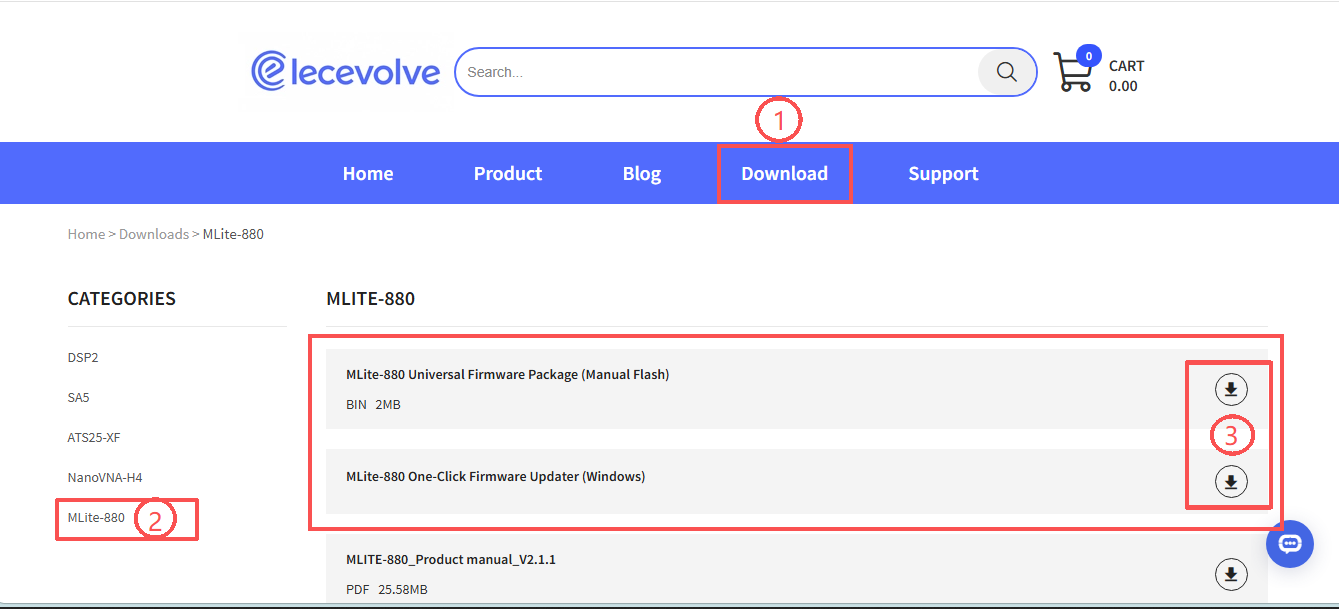
Direct Download Links (from the download page):
-
Download MLite-880 One-Click Firmware Updater (Windows) Here
-
Download MLite-880 Universal Firmware Package (Manual Flash) Here
Method 1: The One-Click Solution (Recommended for Windows Users)
The simplest and fastest way is to use our dedicated Windows tool.
-
Download & Install: After downloading the
MLite-880_One-Click_Updater_Setup.exefrom the link above, run the installer and follow the on-screen instructions. -
Run the Application: Launch the "MLite-880 Firmware Updater" from your desktop or start menu.
-
Connect Your Device: Connect your MLite-880 to your computer using the USB cable.
-
Enter DFU Mode on Your MLite-880:
-
-
Ensure the device is powered off.
-
Connect it to your PC via the USB cable.
-
Press and hold the "1" key on the device.
-
While holding the key, turn on the device's power switch.
-
Continue holding the "1" key for 2-3 seconds, then release it. The device should now be in "DFU FW Update Mode" and ready for flashing.
-
-
-
Click to Upgrade: The updater will automatically detect your device, check for the latest firmware version online, and guide you through a seamless, one-click update process. It handles everything for you!
Note: This tool is designed for Windows 10/11 systems. Please do not disconnect your device during the update.
Method 2: Manual Firmware Flash (For Advanced Users)
This method provides the raw firmware file (a .binfile) for users who need full control over the update process or are using third-party flashing tools.
-
Download the Firmware File: Using the direct link above, download the
MLite-880_Firmware_Vx.x.x.binfile to your computer. -
Enter DFU Mode on Your MLite-880:
-
Ensure the device is powered off.
-
Connect it to your PC via the USB cable.
-
Press and hold the "1" key on the device.
-
While holding the key, turn on the device's power switch.
-
Continue holding the "1" key for 2-3 seconds, then release it. The device should now be in "DFU FW Update Mode" and ready for flashing.
-
-
Use a Flashing Tool: Use a compatible firmware burning tool (not included) to select the downloaded
.binfile and flash it to the MLite-880. The specific tool and steps may vary.
Toolkit and Firmware Download Link:elecevolve - Professional Radio Receivers & Measuring Instruments | Hub for Radio Enthusiasts
Open STM32CubeProgrammer: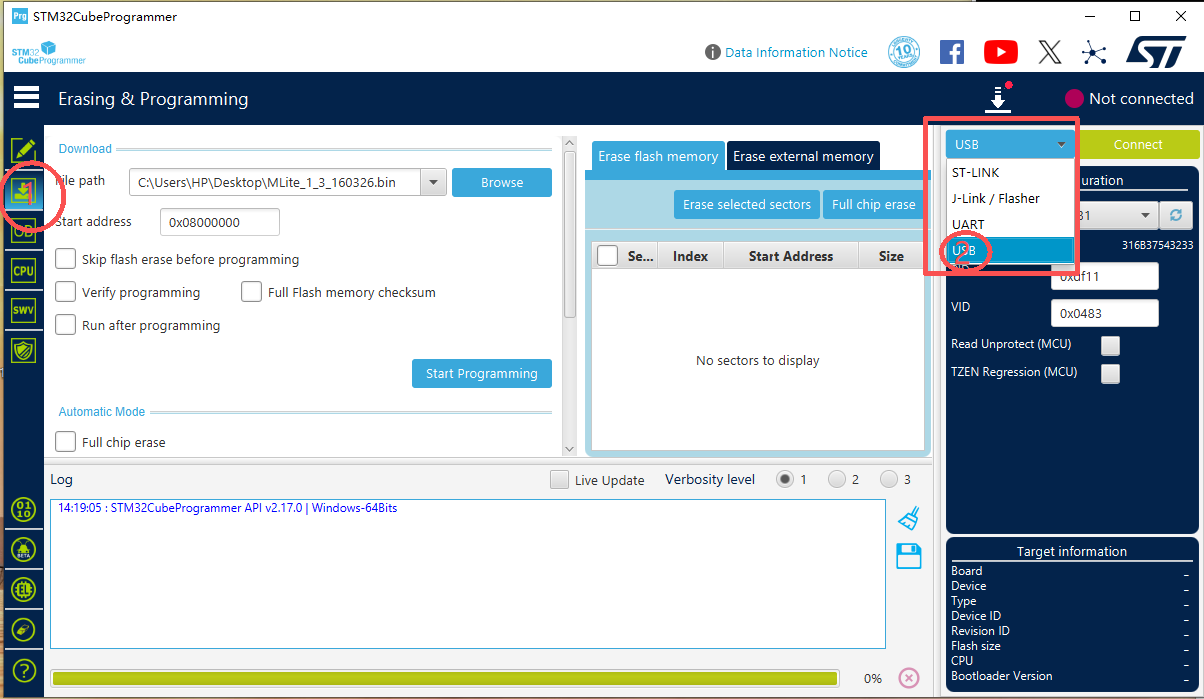
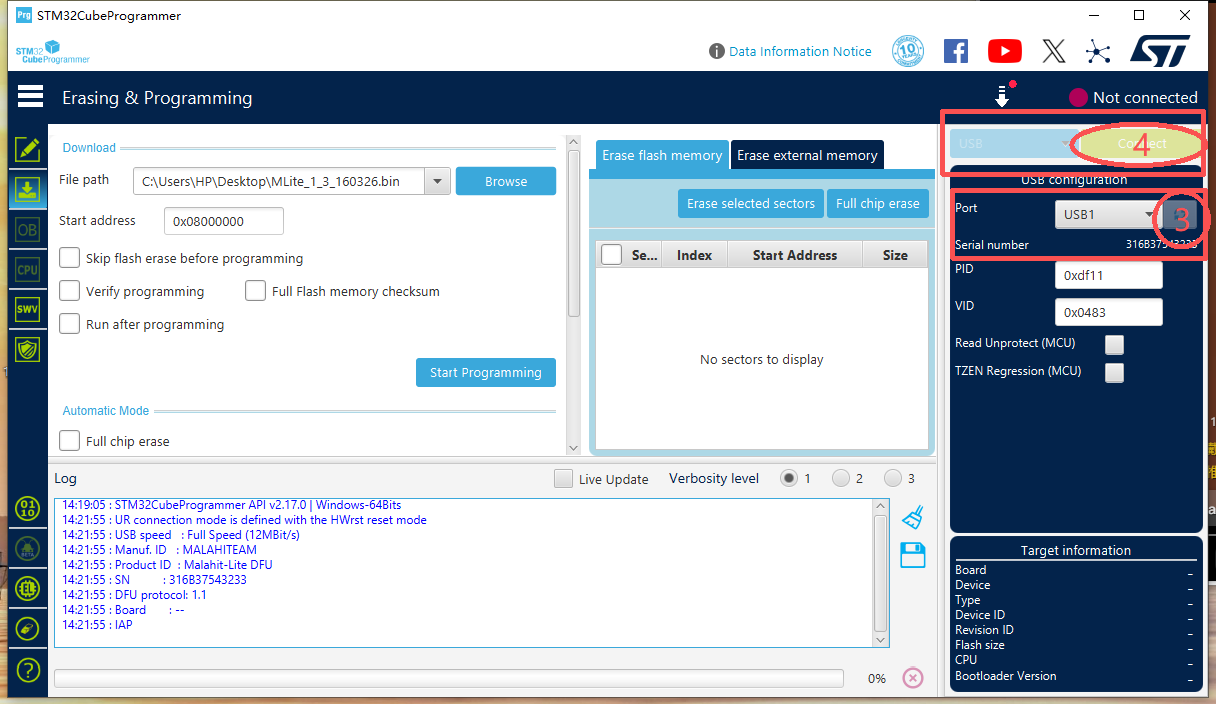
Select the downloaded firmware and proceed with flashing: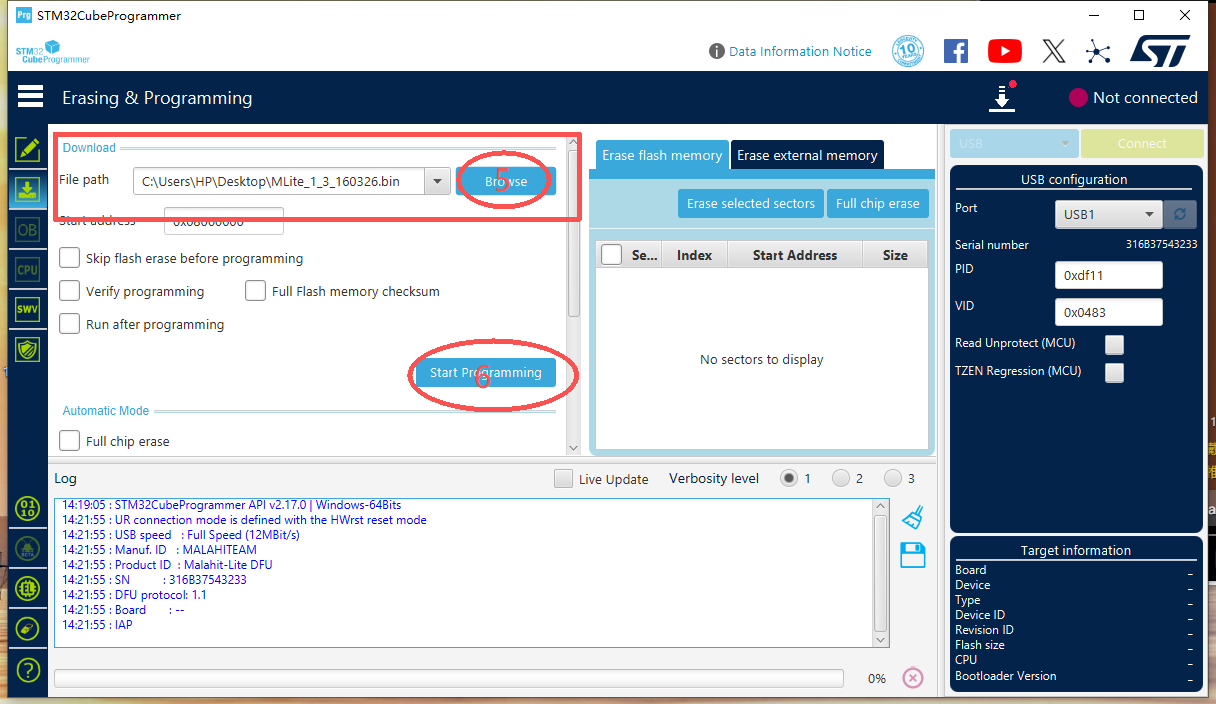
Wait for the firmware flashing to complete, then power the device back on: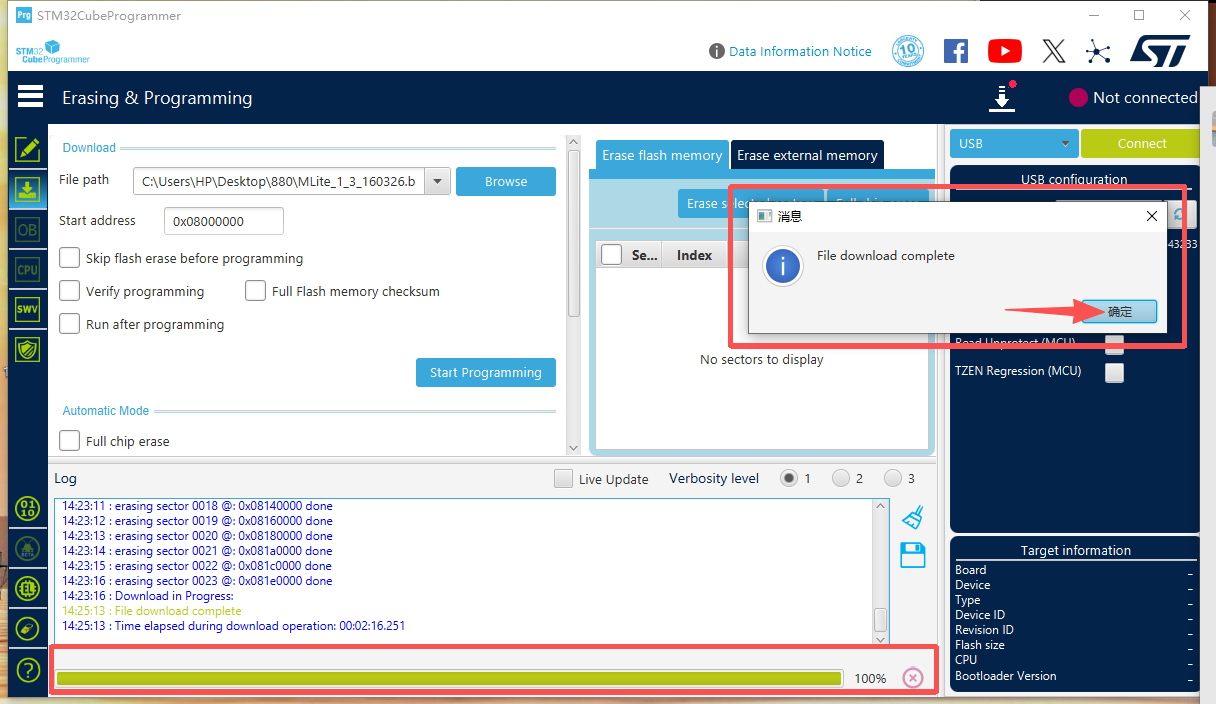
PS:You can go to the button "3" menu page, and on the second page, the fifth item "About" to check if the version is the latest flashed version.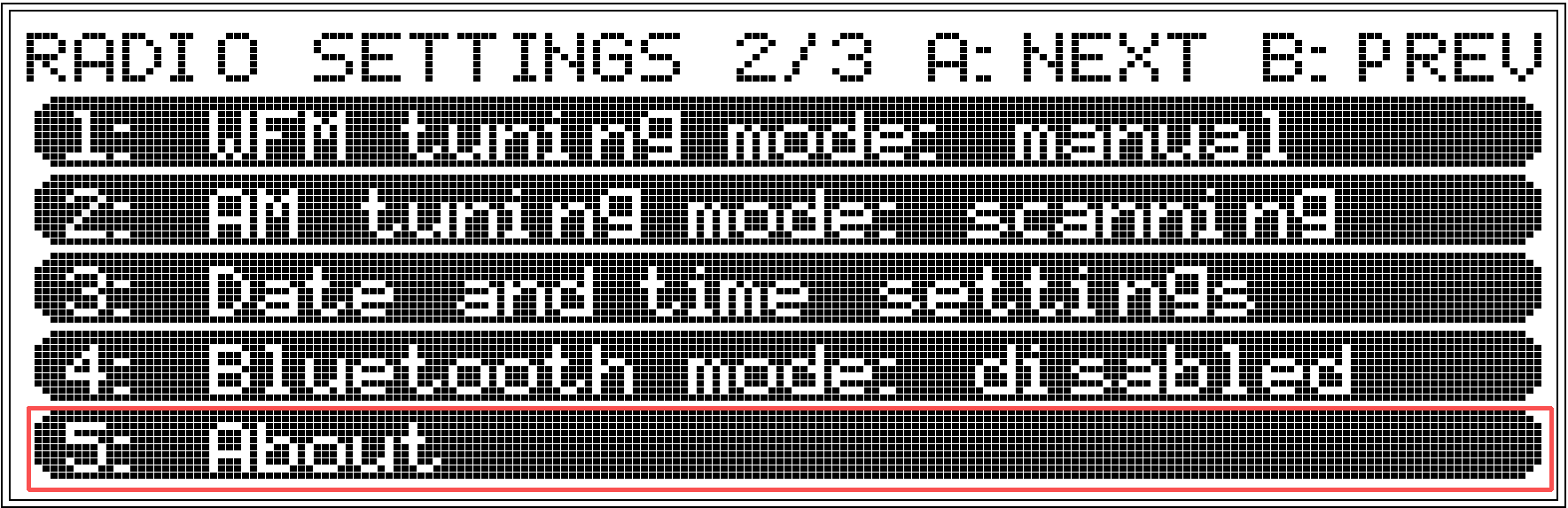
Warning: Manual flashing is intended for advanced users. Entering DFU mode and the flashing process must be followed precisely. An incorrect procedure may interrupt your device. If you are unfamiliar with this process, we strongly recommend using the One-Click Firmware Updater (Windows).
Need Help?
Stuck during the process? Visit our Support Center for detailed FAQs, video tutorials, or to contact our technical support team.
We hope this guide helps you keep your MLite-880 running smoothly with the latest features! Have you updated yet? Share your experience in the comments below.
Recently Reviews
READ MORELeave a Reply
Your email address will not be published.Required fields are marked. *


